LIQUIDWAVE for Mac · Guides
An iTunes music visualizer for the Music app on your Mac.
Updated 8 October 2026
On a current Mac, your iTunes library plays in the Music app: the CDs you imported, the songs you bought from the iTunes Store, the files you added yourself. The Music app has a visualizer of its own under Window → Visualizer, and the iTunes visualizer guide shows how to turn it on. LIQUIDWAVE is a separate app that listens to what Music plays and draws it live, in 60+ scenes across ten styles. This page sets it up, says which songs it hears through System and which need the microphone, and suggests scenes to start with. The download is free.

Set it up in three steps
- Download LIQUIDWAVE and drag it to your Applications folder.
- Open it and allow system audio recording when macOS asks.
- Play an album in Music. Leave the source on System.
Wave is always free, and the first time you open the app you pick one more, also free and with no time limit. The rest unlock inside the app with one purchase.
How it hears the Music app
LIQUIDWAVE doesn't open your library and never signs in to your Apple Account. It listens to the audio your Mac is playing, through the system-audio capture built into macOS since version 14.2, so whatever you play in Music, an album, a playlist or your whole library on shuffle, is drawn as it plays. There is no plug-in to install and nothing to set up inside Music.

The source switch at the bottom of the window has three choices: System for everything the Mac plays, Listen for the microphone, and Ambient for scenes that move with no input at all. macOS asks once for permission to record system audio. The sound is analyzed on your Mac as it arrives, and nothing is recorded unless you start a Scene Recording.
System hears Music after its own volume slider, so turning Music down would shrink the picture with it. A leveler lifts quiet playback before the analysis sees it, and it never lowers a loud stream.
Which songs System hears
That depends on where a song in your library came from.
- Heard through System: songs without DRM. The CDs you imported, DRM-free songs you bought from the iTunes Store and audio files you added yourself play like any other sound on the Mac.
- Silent to System: DRM-protected Apple Music streams. macOS silences them for every capture app, LIQUIDWAVE included. This is the operating system enforcing the content license, not a bug.
From inside LIQUIDWAVE, a protected stream and a missing permission look the same: the capture hears silence. After a few seconds of it, a small lock badge appears in the top-right corner of the window and points to the permission settings. To tell the two apart, play a song you imported from a CD. If the scene moves, the permission is fine, and the silent song was a protected stream. If nothing moves at all, Support walks through the permission.
Listen Mode for Apple Music streams
Listen Mode is LIQUIDWAVE's other source: the Mac's microphone, tuned for a room. It hears the sound in the air rather than the stream inside the Mac, so it works with anything your speakers are playing, including the Apple Music streams that System can't hear.
Switch the source to Listen, or choose Listen Mode — Microphone from the menu bar icon, and play Music out loud. macOS asks for microphone access the first time. On headphones there is nothing for the microphone to hear, and a conversation near the Mac can move the picture too. The Apple Music guide goes further into both sources.
Scenes to start with
The 60+ scenes come in ten styles, and your free pick can come from any of them. A few places to begin:
- Line: Wave, the scene that is always free, and strings, contours and an oscilloscope your music bends and plucks.
- Chroma: a light curtain, northern lights and slow fields of color.
- Metal: molten chrome, foil and silk that the music shapes but never flashes.
- Fluid: ferrofluid, water, a lava lamp and honey that heave and drip to the music.
- Spectral: the music pitch by pitch, in hairlines and fine points, like Atom above.
- Lighting: lasers, sheets of light and stage haze, seen from the crowd.
Every style has its own page under Styles.
Scenes picked for each song
On a Mac with Apple Intelligence, running macOS 26 or later, Mix Shuffle chooses the scenes for you. It reads the title, artist and album of the song playing in Music, asks the Apple Intelligence model on your Mac what kind of track it is, and shuffles the scenes that suit it. When the song changes, the set of scenes changes with it. The audio never goes to the model.
Mix Shuffle needs System as the source, so a protected Apple Music stream gets its scenes picked but leaves them standing still. The songs you imported or bought move them.
The song, under your notch
The Music app announces every track change to the system. On a MacBook with a notch, LIQUIDWAVE's Now Playing island picks up that announcement with no permission at all and shows the title and artist, with a cover looked up in Apple's music catalog.
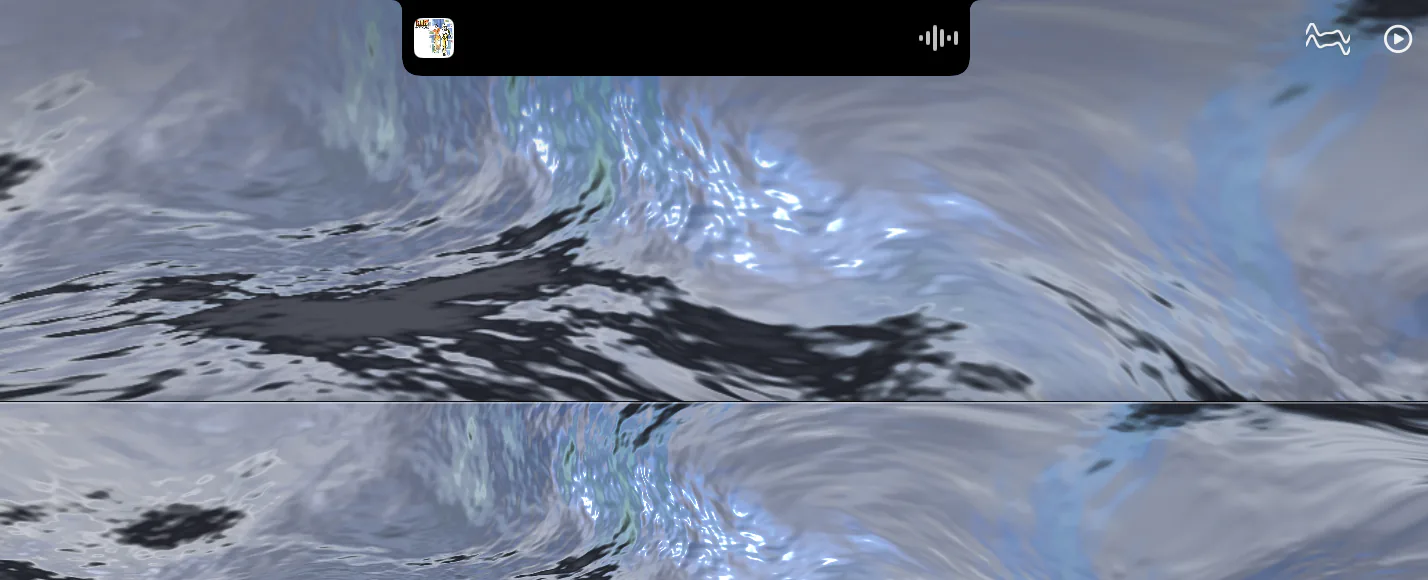
An album that isn't in Apple's catalog may come up without a cover. Press Connect Apple Music… on the island and macOS asks once for Automation access. That adds Music's own artwork for anything the catalog lookup misses, along with the play position and previous, play/pause and next. On a Mac without a notch, the same song appears as a row in LIQUIDWAVE's sidebar.
What it doesn't do
It isn't a plug-in for Music. LIQUIDWAVE runs as an app of its own and doesn't appear in the Music app's Window menu.
It doesn't play your files. LIQUIDWAVE has no player of its own. Play your library in Music, and LIQUIDWAVE draws what the Mac plays.
It hears the whole Mac, not Music alone. There is no setting that limits System to one app, so a notification sound or a video in another tab joins the picture. Pause the other sound when you want Music on its own.
macOS 14.2 or later · notarized by Apple · free
Questions
- Why do my imported CDs move the scene when some Apple Music songs don't?
- macOS silences DRM-protected Apple Music streams for every capture app, LIQUIDWAVE included. Songs without DRM, such as imported CDs, DRM-free iTunes Store purchases and files you added yourself, are heard through System. Listen Mode hears a protected stream through the microphone.
- Does LIQUIDWAVE need access to my iTunes library?
- No. LIQUIDWAVE listens to your Mac's audio output, so it never sees your Apple Account or your library. The Now Playing island shows the song that is playing, which the Music app announces to the system.
- Can LIQUIDWAVE play my music files?
- No. It has no player of its own. Play your library in the Music app, and LIQUIDWAVE draws whatever your Mac plays.
- Does Mix Shuffle work with the Music app?
- Yes, on a Mac with Apple Intelligence turned on, running macOS 26 or later, with System as the source. It reads the title, artist and album of the song playing in Music and shuffles the scenes that suit it.
- Is LIQUIDWAVE free?
- The download is free and includes two scenes, Wave and one you pick, with no time limit. One purchase inside the app unlocks the rest.