LIQUIDWAVE for Mac · Guides
The iTunes visualizer, on a Mac today.
Updated 15 September 2026
If you remember the iTunes visualizer and went looking for it on a newer Mac, the place to look is the Music app. It has a visualizer of its own, and this page shows where it is and how to turn it on. After that comes LIQUIDWAVE, a separate app for the things the built-in one doesn't do. The download is free.
Is the iTunes visualizer still there?
On the Mac, iTunes has given way to separate apps. Apple's iTunes page says that when you update to the latest macOS, your music moves to the Apple Music app automatically, and you keep your iTunes features there, including purchases and imports.
The visualizer you can open today is the Music app's. Apple's guide describes it as colorful light shows, with effects that change based on the type of music and whether it's playing or paused.
Turn on the visualizer in Music
Apple's guide for the Music app gives these steps:
- Open the Music app and play something from your library, Apple Music, the radio or a CD. A song needs to be playing before you can use the visualizer.
- Choose Window → Visualizer.
- To turn it off, choose Window → Visualizer again, or press Esc.
Window → Visualizer Settings holds the options, such as Play Videos to show or hide music videos. Not every visualizer supports options, so they may be dimmed. While the visualizer is on, press the question mark key for a list of the commands it accepts.
Apple's guide describes the visualizer for music playing in the Music app.
A visualizer for everything your Mac plays
LIQUIDWAVE isn't part of the Music app and doesn't plug into it. It is an app of its own, and it listens to the audio your Mac is playing, through the system-audio capture built into macOS since version 14.2. Music is heard that way, and so are Spotify, a browser tab and anything else coming out of the Mac.
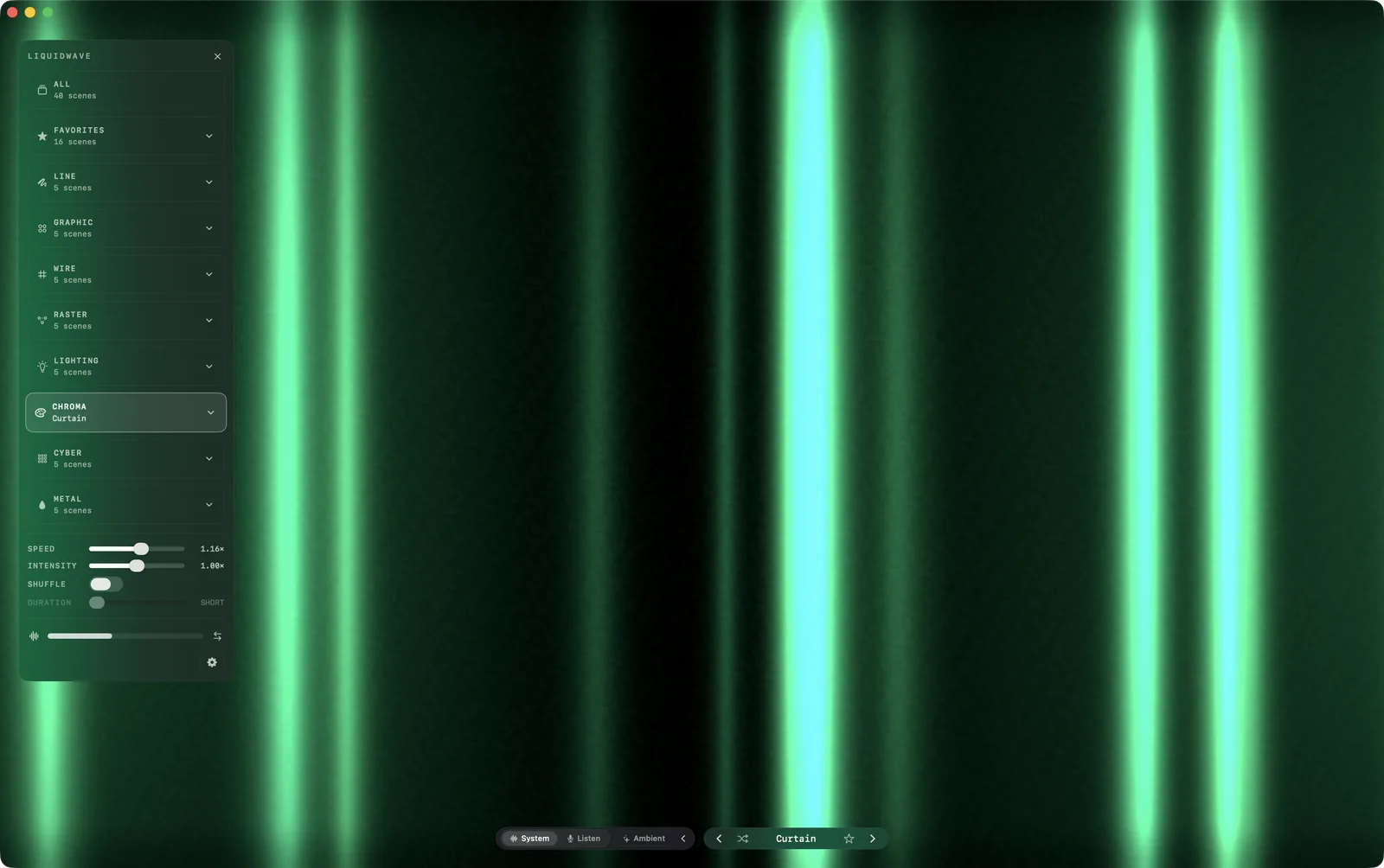
It draws that sound live in forty scenes across eight styles, from waveforms and contour lines to stage lights, neon grids and liquid chrome. Wave is always free, and the first time you open the app you pick one more of the other thirty-nine, also free and with no time limit.
The source switch at the bottom of the window has three choices: System for everything the Mac plays, Listen for the microphone, and Ambient for scenes that move with no input at all. Leave it on System. macOS asks once for permission to record system audio, and the sound is analyzed on your Mac as it arrives. Nothing is recorded or sent anywhere.
System hears Music after its own volume slider, so turning Music down would shrink the picture with it. A leveler lifts quiet playback by up to 40 times before the analysis sees it, and it never lowers a loud stream.
Protected streams and Listen Mode
DRM-protected streams, on Apple Music and elsewhere, are silenced by macOS for every capture app, LIQUIDWAVE included. This is the operating system enforcing the content license, not a bug. Purchased or DRM-free tracks visualize normally.
Listen Mode is the way to see a protected stream. It uses your Mac's microphone and hears the sound in the room rather than the stream inside the Mac, so it works with anything your speakers are playing. Switch the source to Listen and play Music out loud. On headphones there is nothing for the microphone to hear. The Apple Music guide covers both in more detail.
The song, under your notch
The Music app announces every track change to the system. On a MacBook with a notch, LIQUIDWAVE's Now Playing island picks up that announcement with no permission at all and shows the title and artist, with a cover looked up in Apple's music catalog.
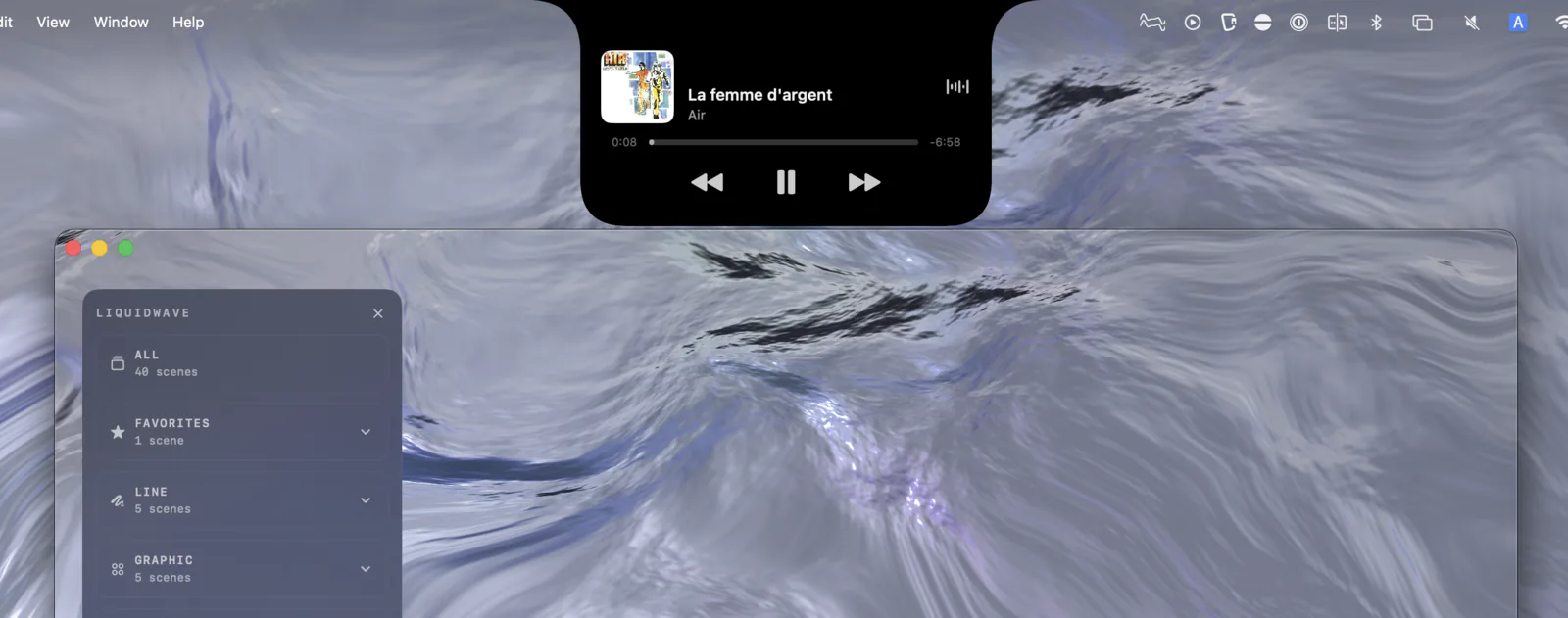
Press Connect Apple Music… on the island and macOS asks once for Automation access. That adds the play position, previous, play/pause and next, and Music's own artwork for anything the catalog lookup misses.
Beyond the window
Desktop Mode plays the visualizer behind your desktop icons while you work. When you're away fills every screen once the Mac has been left alone, and clears on the next key press or mouse move. Both live in Settings → Desktop and stay off until you turn them on.
When the built-in visualizer is enough
If you only listen in the Music app and like its visualizer, you already have what you need. It is on your Mac under Window → Visualizer, and there is nothing to install.
LIQUIDWAVE doesn't recreate the old iTunes visuals. Its scenes are its own, and it doesn't appear in the Music app's Window menu or in Visualizer Settings.
It hears the whole Mac, not Music alone. There is no setting that limits System to one app, so a notification sound or a video in another tab joins the picture. Pause the other sound when you want Music on its own.
The island needs a notch. On a Mac without one, the same track appears as a row in LIQUIDWAVE's sidebar.
Set it up
- Download LIQUIDWAVE and drag it to your Applications folder.
- Open it and allow system audio recording when macOS asks.
- Press play in Music. Leave the source on System, or switch to Listen for a protected stream.
macOS 14.2 or later · notarized by Apple · free
Questions
- Is the iTunes visualizer still on the Mac?
- On current versions of macOS your music lives in the Music app, which has a visualizer under Window → Visualizer. A song needs to be playing before you can turn it on, and Esc turns it off.
- Where are the Music app's visualizer settings?
- Under Window → Visualizer Settings. Not every visualizer supports options, so they may be dimmed. Press the question mark key while the visualizer is on for a list of its commands.
- Does LIQUIDWAVE bring back the old iTunes visuals?
- No. LIQUIDWAVE is a separate app with forty scenes of its own in eight styles. It isn't a plug-in for the Music app and doesn't appear in its Window menu.
- Does LIQUIDWAVE work with songs from my iTunes library?
- Purchased or DRM-free tracks visualize normally. DRM-protected streams are silenced by macOS for every capture app, LIQUIDWAVE included, and Listen Mode hears those through the microphone.
- Is LIQUIDWAVE free?
- The download is free and includes two scenes, Wave and one you pick, with no time limit. One purchase inside the app unlocks the rest.