LIQUIDWAVE for Mac · Guides
A visualizer for Apple Music on your Mac.
Updated 15 September 2026
The Music app on your Mac comes with a visualizer of its own, under Window → Visualizer. LIQUIDWAVE is a separate app that listens to what Music plays and draws it live, in forty scenes: in its own window, behind your desktop icons, or across every screen when you step away. One kind of stream stays out of its reach, and this page says which, and what to do about it.
How it hears the Music app
LIQUIDWAVE doesn't sign in to Apple Music and never reads your library. It listens to the audio your Mac is playing, through the system-audio capture built into macOS since version 14.2, so there is nothing to install alongside it and nothing to set up inside Music.
Leave the source switch at the bottom of the window on System. macOS asks once for permission to record system audio, and from then on the Music app is heard along with everything else the Mac plays. The audio is analyzed as it arrives and never leaves your Mac.
System capture hears Music after its own volume slider, so turning Music down would shrink the picture with it. LIQUIDWAVE runs the capture through a leveler that only ever raises the level: quiet playback is brought up toward a steady level, full-volume playback passes through untouched, and the silence between tracks stays silent.
When Apple Music shows nothing
DRM-protected Apple Music streams are silenced by macOS for every capture app, LIQUIDWAVE included. This is the operating system enforcing the content license, not a bug. Purchased or DRM-free tracks visualize normally.
From inside LIQUIDWAVE, a protected stream and a missing permission look the same: the capture hears silence. After a few seconds of it, a small lock badge appears in the top-right corner of the window and points to the permission settings. To tell the two apart, play something else, a YouTube video in a browser tab for instance. If the scene moves, the permission is fine, and a protected Apple Music stream is the likely cause. If nothing moves at all, Support walks through the permission.
Listen Mode hears what your speakers play
Listen Mode is LIQUIDWAVE's other source: the Mac's microphone, tuned for a room. It hears the sound in the air rather than the stream inside the Mac, so it works with anything your speakers are playing, including the Apple Music streams that System can't hear.
Switch the source to Listen, or choose Listen Mode — Microphone from the menu bar icon (⇧⌘2), and play Music out loud. macOS asks for microphone access the first time. A low cut, a noise gate and automatic gain prepare the sound before the analysis sees it, and the vinyl guide explains each.
The trade-off is the room. On headphones there is nothing for the microphone to hear, and a conversation or a loud fan near the Mac can move the picture too. Mic sensitivity in Settings → General sets how much it takes to open the gate.
The song, under your notch
The Music app announces every track change to the system. On a MacBook with a notch, LIQUIDWAVE's Now Playing island picks up that announcement with no permission at all and shows the title and artist, with a cover looked up in Apple's music catalog.
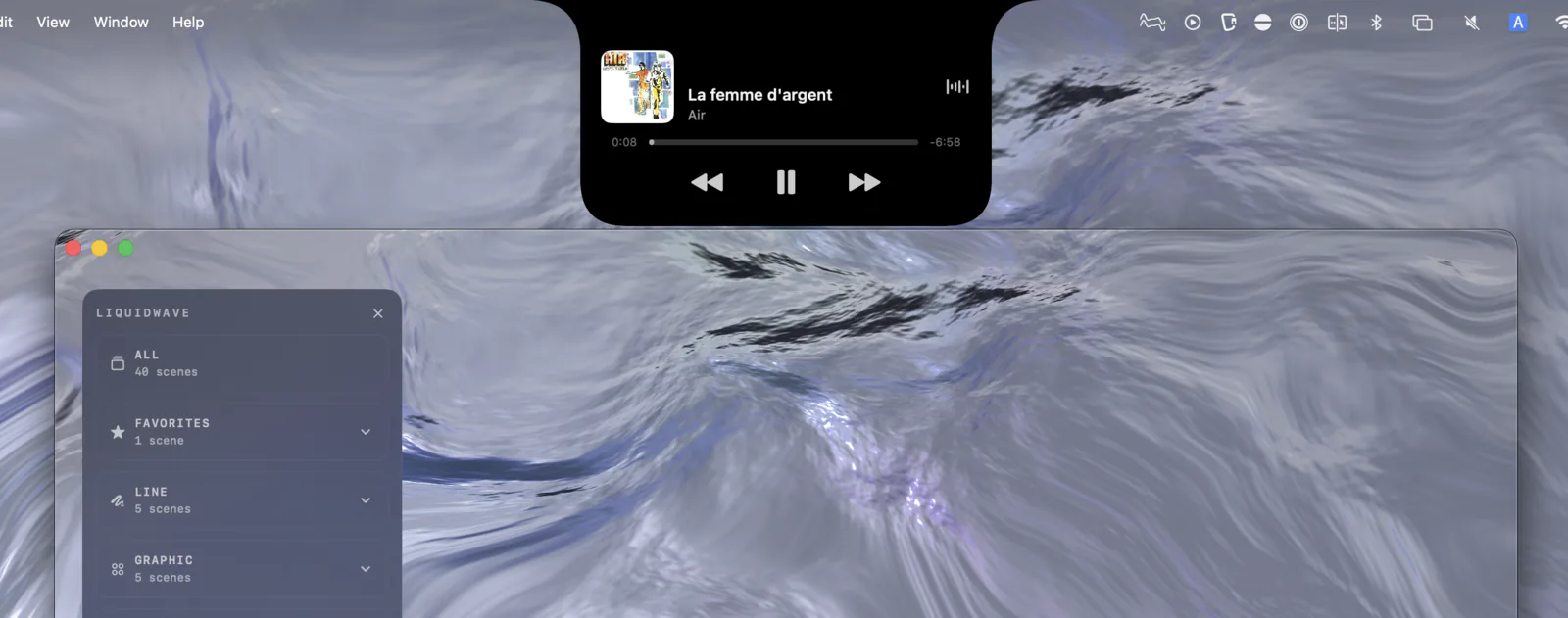
Press Connect Apple Music… on the island and macOS asks once for Automation access. That adds the play position, previous, play/pause and next, a track that was already playing when LIQUIDWAVE opened, and Music's own artwork for anything the catalog lookup misses.
Beyond the window
Music doesn't need LIQUIDWAVE's window to be seen. Desktop Mode plays the visualizer behind your desktop icons while you work, and When you're away fills every screen once the Mac has been left alone, clearing on the next key press or mouse move.
What it doesn't do
It doesn't hear only the Music app. System captures everything the Mac plays, so a notification sound or a video in another tab joins the picture. There is no setting that limits it to one app, so pause the other sound when you want Music alone.
It can't hear protected streams through System. That silence comes from macOS, for every capture app. Listen Mode is the way to see one.
The island needs a notch. On a Mac without one, or on an external display, the same track appears as a row in LIQUIDWAVE's sidebar instead.
Set it up
- Download LIQUIDWAVE and drag it to your Applications folder.
- Open it and allow system audio recording when macOS asks.
- Press play in Music. Leave the source on System, or switch to Listen for a protected stream.
macOS 14.2 or later · notarized by Apple · free
Questions
- Does the Music app have a built-in visualizer?
- Yes, under Window → Visualizer in the Music app. LIQUIDWAVE is a separate app that draws whatever your Mac plays, Music included, in its window, behind your desktop icons or full screen when you're away.
- Why does LIQUIDWAVE show nothing for some Apple Music songs?
- DRM-protected Apple Music streams are silenced by macOS for every capture app. Purchased or DRM-free tracks work, and so does Listen Mode through the mic.
- Do I need to sign in to Apple Music?
- No. LIQUIDWAVE listens to your Mac's audio output, so it never sees your Apple Account or your library.
- Does the Now Playing island work with Apple Music?
- Yes. The Music app announces track changes, and the island shows them with no permission. Connect Apple Music for the play position, the controls and Music's own artwork.
- Is LIQUIDWAVE free?
- The download is free and includes two scenes, Wave and one you pick, with no time limit. One purchase inside the app unlocks the rest.