LIQUIDWAVE for Mac · Features
A music visualizer for when you're away.
Updated 15 September 2026
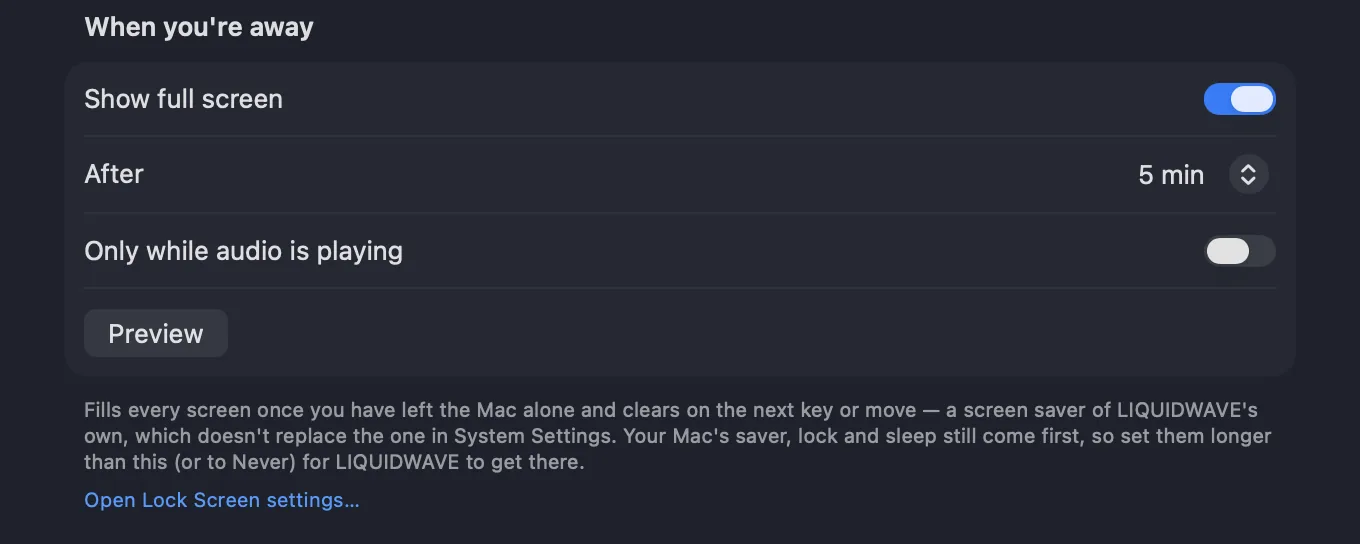
Leave your Mac alone with music playing, and When you're away fills every screen with LIQUIDWAVE. The picture keeps moving with whatever the Mac is hearing, and the next key press or mouse move clears it. It lives in Settings → Desktop, next to Desktop Mode, and it stays off until you turn it on.

What you see
Once the Mac has gone untouched for the wait you choose, a canvas fades in over about a second on every connected display, over everything on it. It plays the scene you have selected in LIQUIDWAVE, drawn live from the same source as the window: System for what the Mac plays, or Listen for the room through the microphone.
With no source running, Ambient Auto keeps the scenes moving to a score of its own. A source that is on but silent, such as a paused player, leaves the picture still rather than pretending.
The canvases draw at the render quality you set in Settings → Visual. Unlike Desktop Mode, they don't pause on battery or when covered. Nothing covers them, and a frozen frame isn't what you expect to come back to.
How it knows you've stepped away
macOS keeps a count of the seconds since the keyboard, mouse or trackpad was last used, and an app can read it without watching any of them. LIQUIDWAVE checks that count once a second. It never sees what you type or where the pointer goes, so it needs no Accessibility or Input Monitoring permission, and it asks for nothing beyond the audio access LIQUIDWAVE already has.
Choose the wait under After: 1, 2, 5, 10 or 15 minutes. It starts at 5.
Coming back
While the canvas is up, LIQUIDWAVE reads the count four times a second, so a key press or a nudge of the mouse clears every screen in a fraction of a second, with a short fade. The pointer stays hidden until you move it.
The click that wakes the Mac is absorbed by the canvas, the way a screen saver absorbs it, so it can't also press a button in the app underneath. LIQUIDWAVE takes the front while the canvas is up, which is what lets it hide the pointer, and hands the front back to the app you were using on the way out.
Once it has cleared, it doesn't return the moment you stop moving. The whole wait starts again.
Only while audio is playing
A full-screen visualizer in a silent room is a light left on. Turn on Only while audio is playing, and the canvas holds back unless the running source has heard something in the last ten seconds, System from the Mac or Listen through the microphone. Ambient Auto's score doesn't count as playing, so with this switch on, nothing comes up while no source is running.
The switch decides whether the canvas starts, not whether it stays. A fade-out, or the gap between two tracks, won't end the picture halfway through a record.
Your Mac's own screen saver comes first
When you're away doesn't replace anything in System Settings. While the Mac's screen saver is running, the screen is locked or the displays are asleep, LIQUIDWAVE's canvas stays down, and one that is already up goes at once. It also stays away while LIQUIDWAVE's own window is full screen, where you are already watching.
So set your Mac's screen saver, lock and display sleep longer than LIQUIDWAVE's wait, or to Never, for it to get its turn. The footer of the When you're away section has an Open Lock Screen settings… link that opens the Lock Screen pane of System Settings.
Why it isn't in the Screen Saver list
A macOS screen saver is a bundle that the system runs inside a process of its own, and a visualizer in there can't keep the permission to hear your audio. It would be a screen saver that draws music it can't hear. So When you're away is LIQUIDWAVE's own full-screen canvas instead, and it doesn't appear in System Settings next to the Mac's screen savers.
That also means it only works while LIQUIDWAVE is running. Closing the window leaves the app running for it, with the menu bar icon still there, and Quit ends it. Turn on Open at login in Settings → General to have it ready from the moment you sign in.
What it doesn't do
It doesn't pick screens. It fills every connected display at once. The per-screen switches in Settings → Desktop belong to Desktop Mode.
It goes by your hands, not by the screen. The wait counts time since the keyboard, mouse or trackpad was last used. A video playing in another app doesn't hold it back, so before a long film, switch it off from the menu bar or choose a longer wait.
It doesn't lock your Mac. It is a picture, not a lock. Anyone who touches the keyboard is back at your desktop, so keep the Mac's own lock set if you need one.
Turn it on
- Download LIQUIDWAVE and open it.
- Open Settings → Desktop and, under When you're away, turn on Show full screen.
- Choose the wait under After, and whether it should wait for audio.
- Press Preview to see it straight away.
The menu bar icon has the same controls: Show Full Screen When Away to switch it on or off, and Show Full Screen Now to bring it up at once.
macOS 14.2 or later · notarized by Apple · free
Questions
- Does When you're away need Accessibility or Input Monitoring permission?
- No. It reads how long the Mac has gone untouched, a count macOS keeps, rather than watching your keyboard or pointer, and it asks for nothing beyond the audio access LIQUIDWAVE already has.
- Why isn't it in System Settings → Screen Saver?
- A screen saver bundle can't keep the permission to hear your audio, so When you're away is LIQUIDWAVE's own full-screen canvas. It works while LIQUIDWAVE is running, and your Mac's own screen saver, lock and display sleep come first.
- Does it work with more than one display?
- Yes. It fills every connected display at once and clears them all on the next key press or mouse move.
- Will it start when nothing is playing?
- By default, yes, and Ambient Auto keeps the scenes moving while no audio source is running. Turn on Only while audio is playing, and it waits until the running source has heard something in the last ten seconds.
- Is When you're away in the free version?
- Yes. It comes with the free download and plays the scenes you own, Wave and the one you picked. One purchase inside the app unlocks the rest.