LIQUIDWAVE for Mac · Features
Your music, behind your desktop icons.
Updated 15 September 2026
Desktop Mode takes LIQUIDWAVE out of its window and puts it on your desktop, underneath your icons and every window you have open. Spotify, a record through the microphone, a YouTube tab: whatever the Mac is hearing moves across the desktop while you work. It is part of LIQUIDWAVE for Mac, off until you turn it on, and it works in the free download.
Where it sits
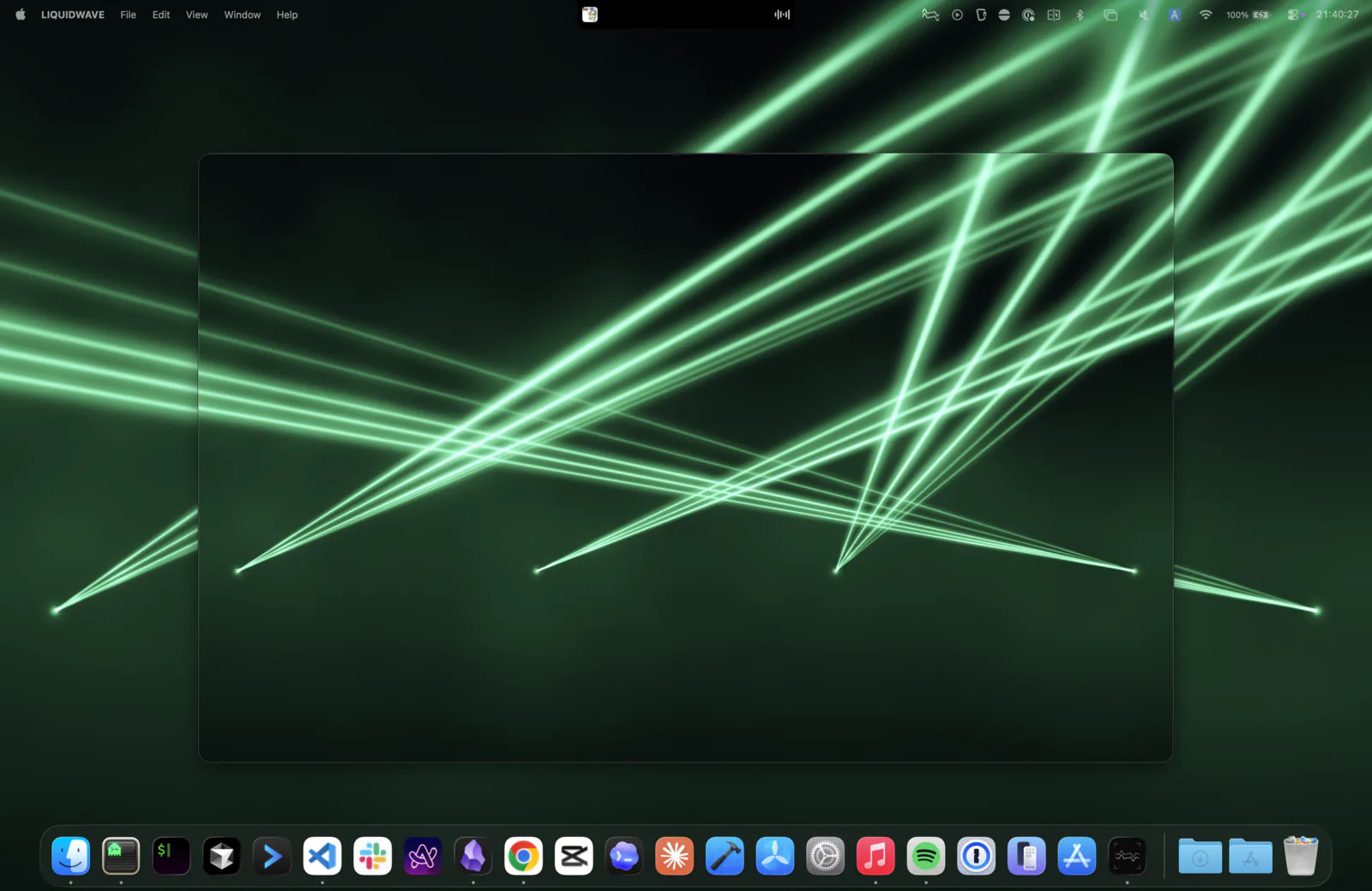
macOS stacks the desktop in layers: the wallpaper at the bottom, Finder's desktop icons above it, and your windows above those. Desktop Mode draws one canvas per screen in the gap between the wallpaper and the icons. Your icons stay where you left them, your windows cover the canvas the way they cover the wallpaper, and the Dock and menu bar are untouched.
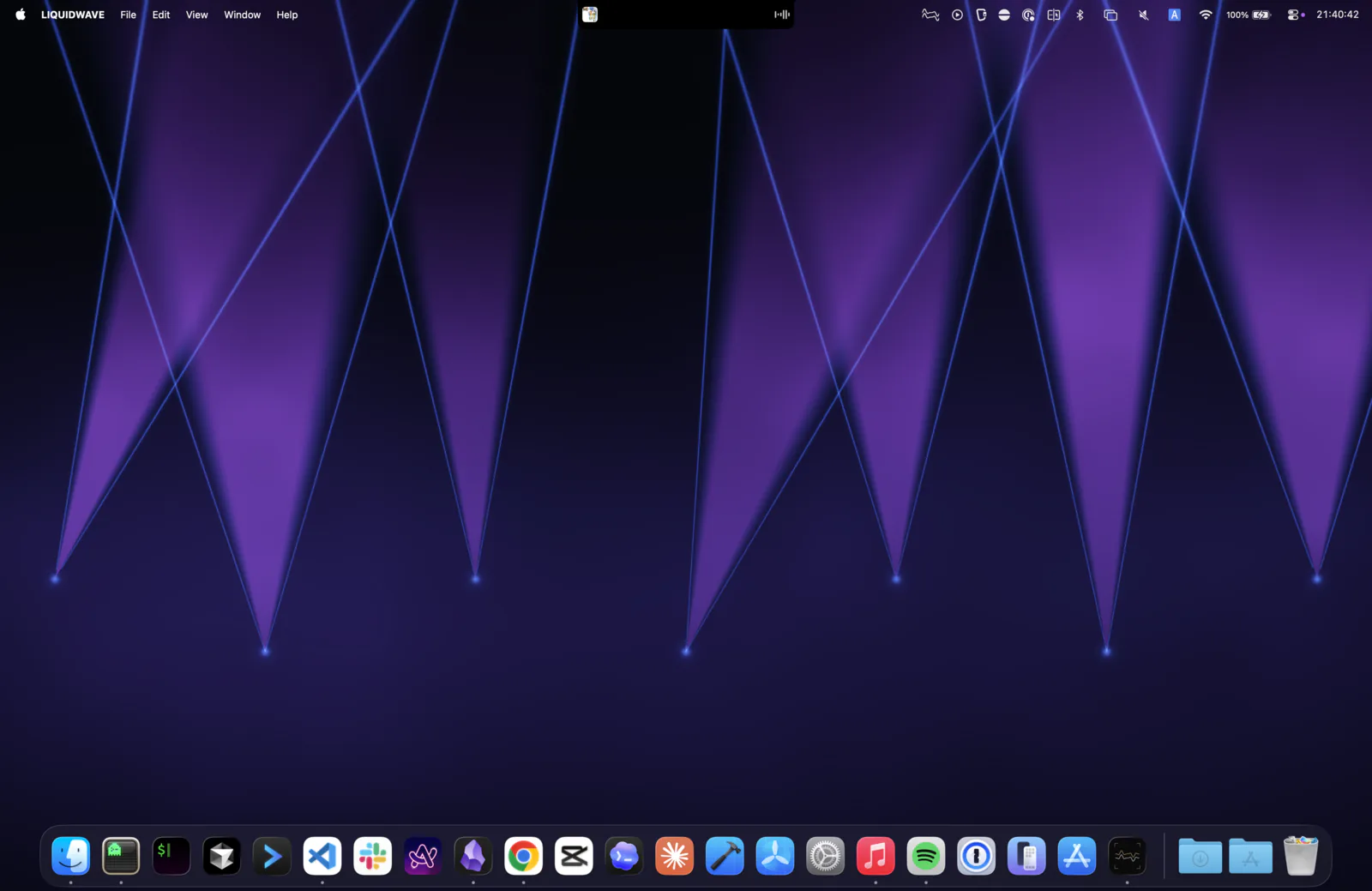
The canvas is scenery. Clicks pass straight through it to the desktop underneath, so dragging a file onto the desktop or right-clicking it works as it always has. It follows you across Spaces, and with more than one display each screen gets its own switch, so the visualizer can play on the big monitor and leave the laptop screen alone.
It rests where nobody is looking
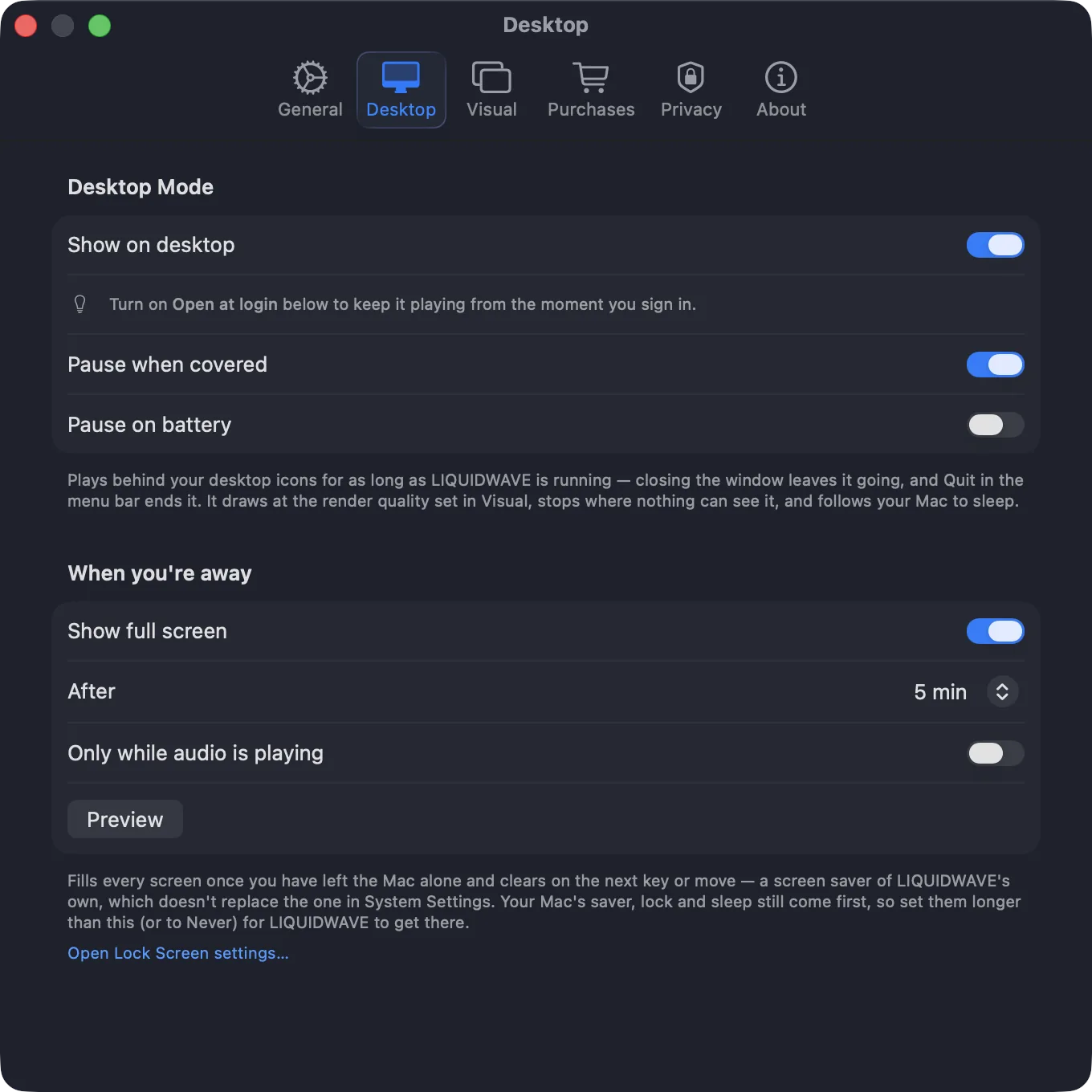
A visualizer behind a full-screen app is work nobody sees. With Pause when covered, which is on by default, a canvas that is hidden completely pauses and picks up again when something reveals it. When none of LIQUIDWAVE's canvases can be seen, it stops analyzing audio until one can, while keeping the audio source open so macOS doesn't ask for permission again.
Turn on Pause on battery and the desktop rests whenever the MacBook is unplugged. The canvases draw at the render quality you set in Settings → Visual, which limits how many pixels a large display costs, and they follow your Mac to sleep.
Close the window, keep the music
Desktop Mode keeps playing for as long as LIQUIDWAVE is running. Closing the main window leaves the desktop going. The menu bar icon stays, with Show Window at the top of its menu and Quit to end it, and Window → Show Window, or ⌘0, brings the window back. Turn on Open at login in Settings → General, and the desktop is already playing by the time you sign in.
When nothing is playing
With no audio source running, Ambient Auto keeps the scenes moving to a score of its own: the skeleton of a track, with a beat, a tempo and sections, a new piece every few minutes, and no sound. Switch a source on, System or Listen, and live audio takes over. A source that is running but silent, such as a paused Spotify, keeps the desktop still rather than pretending.
Which scene plays
The desktop shows the scene you have selected in LIQUIDWAVE. In the free version that means the scenes you own, Wave and the one you picked. Previewing a locked scene in the window doesn't change the desktop, which keeps playing your last owned scene.
It isn't a system wallpaper
Desktop Mode doesn't change your wallpaper in System Settings, and macOS doesn't list it there. It is LIQUIDWAVE drawing behind your icons, so quitting the app brings your own wallpaper straight back and leaves nothing behind.
When you're away
Desktop Mode has a sibling in the same settings tab. When you're away fills every screen once the Mac has been left alone for one to fifteen minutes, and clears on the next key press or mouse move. The click that wakes it is absorbed, so it can't also press something in the app underneath. Only while audio is playing keeps it from starting in a silent room, and Preview shows it straight away.
It is LIQUIDWAVE's own full-screen view rather than an entry in the Screen Saver list, because a screen saver bundle can't keep the permission to hear your audio. Your Mac's own screen saver, lock and display sleep still come first, so set them longer than LIQUIDWAVE's wait, or to Never, for it to get there.
Turn it on
- Download LIQUIDWAVE and open it.
- Open Settings → Desktop and turn on Show on desktop.
- Play something. Choose the screens, and whether to pause when covered or on battery, in the same place.
macOS 14.2 or later · notarized by Apple · free
Questions
- Does Desktop Mode slow my Mac down?
- It uses the graphics chip while it is visible, like any animation. It pauses on a covered screen, can pause on battery, and draws at the render quality you choose in Settings → Visual, which limits the pixels a large display costs.
- Can I still use my desktop icons?
- Yes. The canvas sits beneath Finder's icons and lets every click pass through to the desktop.
- Does it work with more than one display?
- Yes. Each screen gets its own canvas and its own switch in Settings → Desktop.
- Is Desktop Mode in the free version?
- Yes. The desktop plays the scenes you own, Wave and the one you picked, and every scene once you unlock the rest.