LIQUIDWAVE for Mac · Features
Your own music visualizer playlists, on the Mac.
Updated 7 October 2026
LIQUIDWAVE plays its scenes one style at a time, the whole catalog at once, or only the ones you starred. Scene playlists add collections of your own: pick scenes from any style, put them in the order you want, name the list and let it shuffle while the music plays. They came with LIQUIDWAVE 1.1 for Mac, and they live in the same Styles panel as everything else.
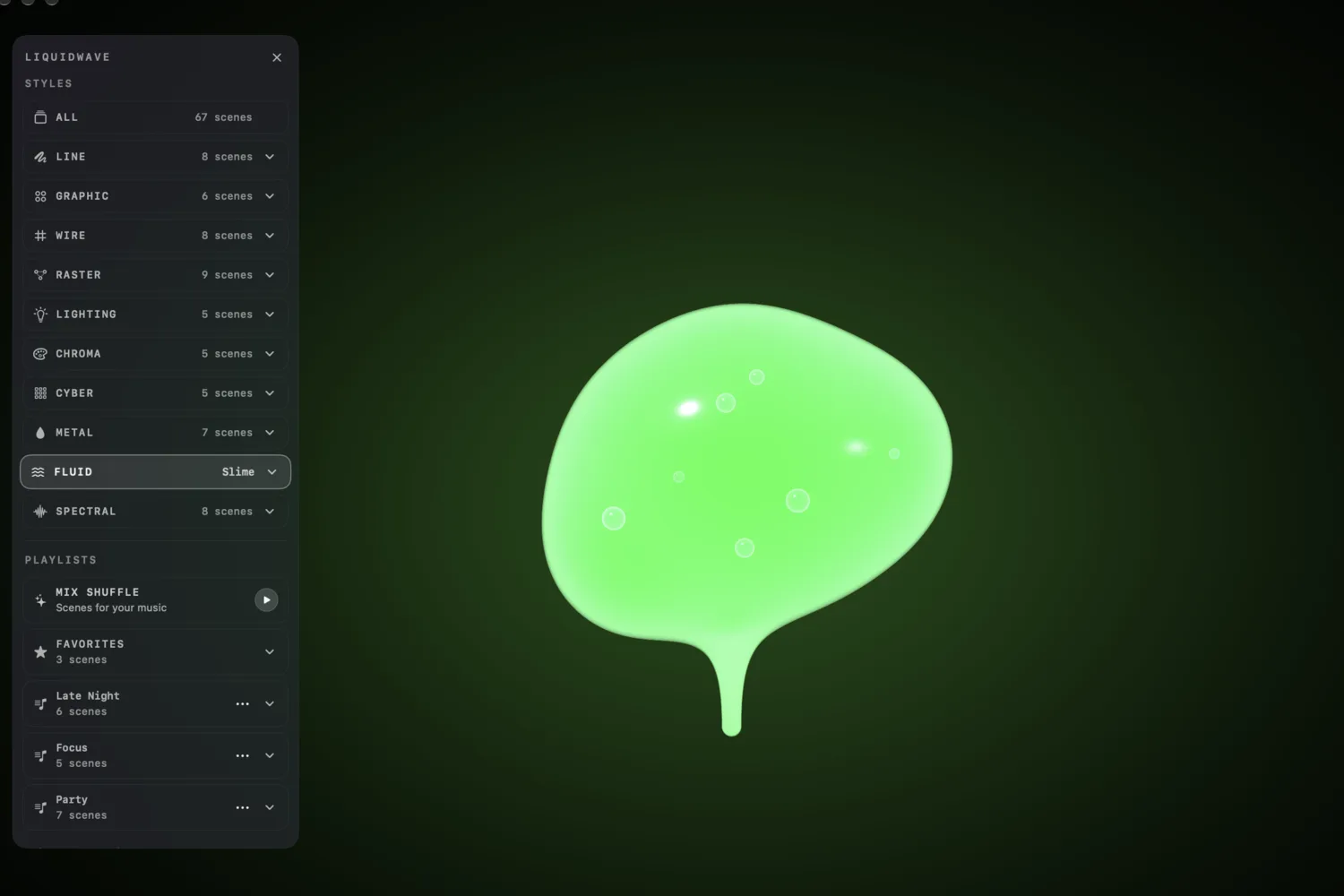
Where playlists live
Open the Styles panel from its button at the bottom left of the window, or press ↑ or ↓. Below the styles comes PLAYLISTS: Mix Shuffle on the Macs that can run it, then FAVORITES, then your own lists. Each list shows its name and how many scenes it holds, and while it plays, the scene on screen. The chevron at its right opens the list, so you can start from any scene in it. The ⋯ beside the chevron holds Edit Playlist… and Delete Playlist…. Deleting asks first, and it removes the list only. The scenes stay in your library.
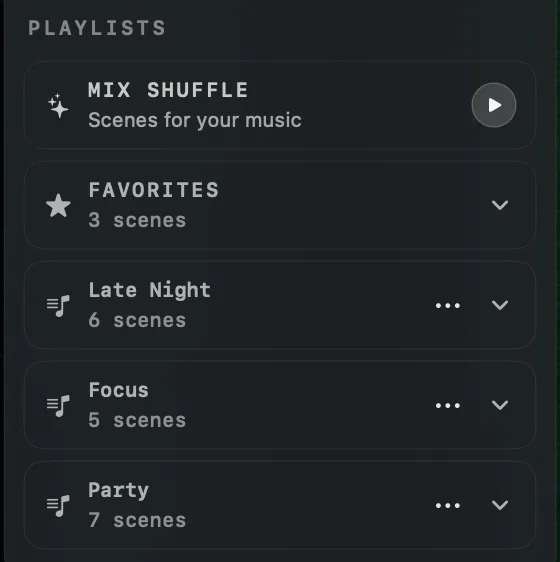
Making a playlist
At the end of the PLAYLISTS section is New Playlist. It opens the editor: a name field at the top, the playlist's scenes under it, and the catalog below, grouped by style. Each style has a heading, LINE, GRAPHIC, WIRE and the rest, with the number of its scenes not yet in the list, and a click folds it away. Click a scene to add it. It leaves the catalog and joins the list above, where its style is shown beside its name. The arrows on its row move it up or down, and the minus takes it out again.
Nothing is saved while you work. The editor holds a draft until you press Save (or Return), and Cancel (or Esc) throws it away. Save needs only a name, so a playlist can start empty and fill up later. When you play an empty one, the window says there are no scenes in it and offers Add Scenes. A list saved from New Playlist starts playing straight away.
Adding a scene from where you are
You don't have to open the editor to grow a list. Expand a style in the Styles panel and every scene row ends in ⋮. Its menu names each of your playlists, Add to Late Night, Add to Party and so on. Choose one and the scene goes on the end of that list, saved on the spot. A list that already holds the scene shows a check and can't be chosen. The last item, New Playlist…, opens the editor with that scene already in the draft. Saving that one leaves you where you were rather than switching to the new list.
The bottom of the window carries the same menu for the scene on screen: the + beside the star, after the scene's name. It's the quickest way to keep a scene you've just noticed while Shuffle runs.
Playing a playlist
Click a playlist to play it, or step to it with ↑ and ↓, which walk through ALL, the styles, FAVORITES and then your playlists.
With Shuffle on (the switch under CONFIG in the Styles panel, or the shuffle button at the bottom of the window), LIQUIDWAVE moves through the playlist by itself and shows every scene in it once before any comes around again. ← and →, or the arrows at the bottom of the window, step back through what played and forward again; past the newest, → draws a scene the round hasn't shown yet. A scene you add to the playing list joins the round as one still to come. DURATION sets how long each scene stays, Short, Medium or Long, counted in beats and onsets rather than seconds, so a quiet passage holds the scene on screen.
With Shuffle off, the scene stays until you change it, and ← and → walk the playlist in the order you set.
Settings → General → Launch scope decides where LIQUIDWAVE opens. On Last used, the default, it comes back to the playlist you left it on. All scenes or Favorites start there instead.

Favorites is free, playlists come with the full unlock
FAVORITES is the list LIQUIDWAVE keeps for you. Click the star at the bottom of the window and the scene on screen joins it; FAVORITES keeps the order you starred them in, and a second click takes a scene out. Favorites comes with the free download, where FAVORITES plays the scenes you own: Wave and the one you picked.
Playlists are part of the full unlock, the one purchase inside the app that unlocks the rest. Without it, New Playlist carries a lock, and choosing it, or anything in a ⋮ menu, brings up the in-window card that explains the unlock rather than making a list.
If the unlock ever goes away, after a refund for instance, the editor closes, a playlist that was playing hands over to ALL and Wave, and every saved list is kept. When the unlock comes back, so do the playlists.
What playlists don't do
They stay on this Mac. Playlists are saved in LIQUIDWAVE's own preferences on the Mac you made them on. There's no iCloud sync and no way to export or share a list, so another Mac starts with none.
Shuffle is the only automatic order. Your order is what ← and → follow with Shuffle off. Left to run by itself, a playlist always shuffles, and no setting plays it top to bottom.
A scene is in a list once. The same scene can sit in as many playlists as you like, once in each.
A playlist doesn't choose scenes for the song. That's Mix Shuffle, which sits above Favorites on Macs with Apple Intelligence while System Audio is the source. It reads the track that's playing and shuffles the scenes that fit it. A playlist plays what you put in it, whatever is on.
macOS 14.2 or later · notarized by Apple · free
Questions
- Are scene playlists in the free version?
- No. Playlists are part of the full unlock, the one purchase inside the app that unlocks the rest. Favorites is free: click the star at the bottom of the window and the scene on screen joins FAVORITES.
- Do playlists sync between Macs over iCloud?
- No. Playlists are saved in LIQUIDWAVE's own preferences on the Mac you made them on. There's no iCloud sync and no export, so another Mac starts without them.
- Can a playlist play in order instead of shuffled?
- Only by hand. With Shuffle off, the scene stays until you change it, and ← and → step through the playlist in the order you set. With Shuffle on, LIQUIDWAVE shows every scene in the list once, in a random order, before any comes around again.
- What happens to my playlists if I lose the full unlock?
- They are kept. A playlist that was playing hands over to ALL and Wave, and your saved lists come back as they were when the unlock does.
- Can one scene be in more than one playlist?
- Yes, once in each. The ⋮ menu on a scene's row shows a check beside the playlists that already hold it.